A picture of the monstrance, a flyer for an adoration event, a letter from the pastor: some messages say more with an image or a document. Sharing them with adorers is a popular request we hear from coordinators, and now you can include them right in your emails.
With the new email layout, you can now add an image and attach a PDF to bulk messages, the welcome email and the guest welcome email.
Adding an Image
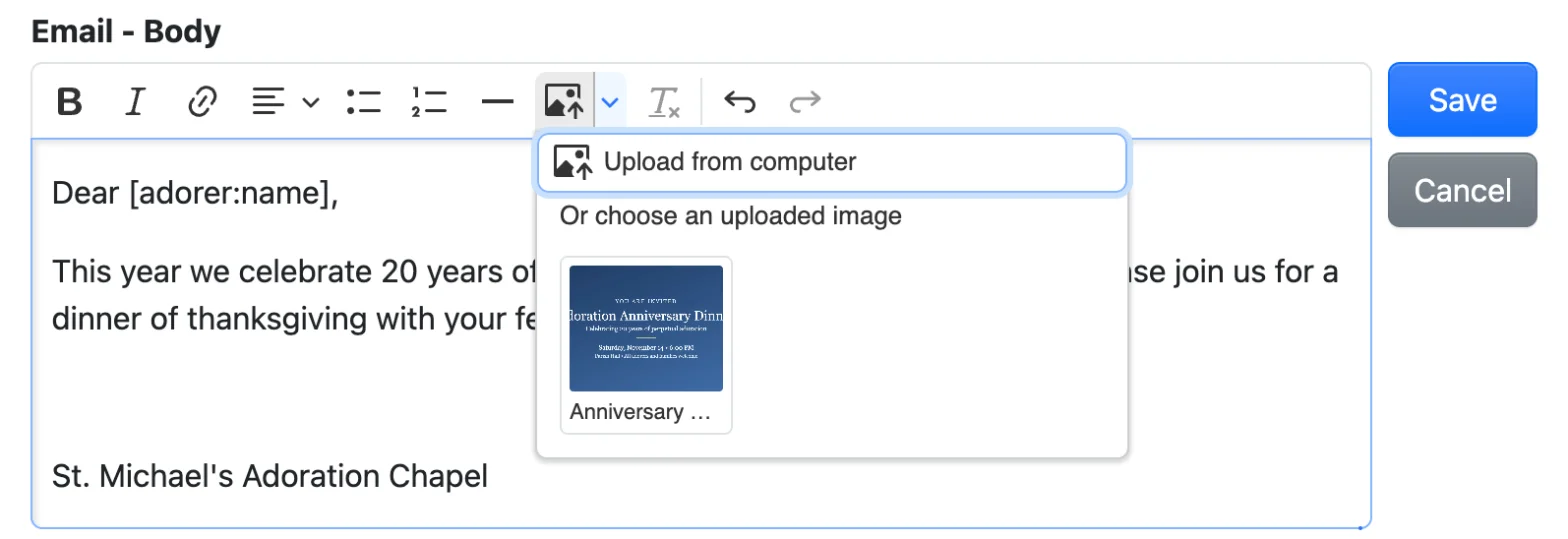
Click the image button in the email editor, then choose Upload from computer or pick one from Or choose an uploaded image.
Attaching a PDF
An email can also attach a PDF. In a bulk message, click Upload a PDF or Choose an uploaded PDF under the email body. The welcome emails also can attach a PDF, and you can even attach a separate one for each language your adorers speak.
You can also include a link to your PDF in text messages. Click Add to text message to include the PDF's link in the message.
Linking to a File
The link button in the email editors and the sitewide message now lists your Uploaded files, so you can link text to an image or PDF without copying its address.
For example, you might link to a policy document or campus map in the sitewide message for adorers to quickly access them.
Every image and PDF you upload also appears on the Files page. Learn more about uploading images and PDFs.
Enjoy! 🎉