Uploading Images and PDFs
How do I embed images and attach documents in our emails?
The Admin » Files page manages the images and PDFs used in emails, such as a flyer for an adoration event or your chapel guidelines.
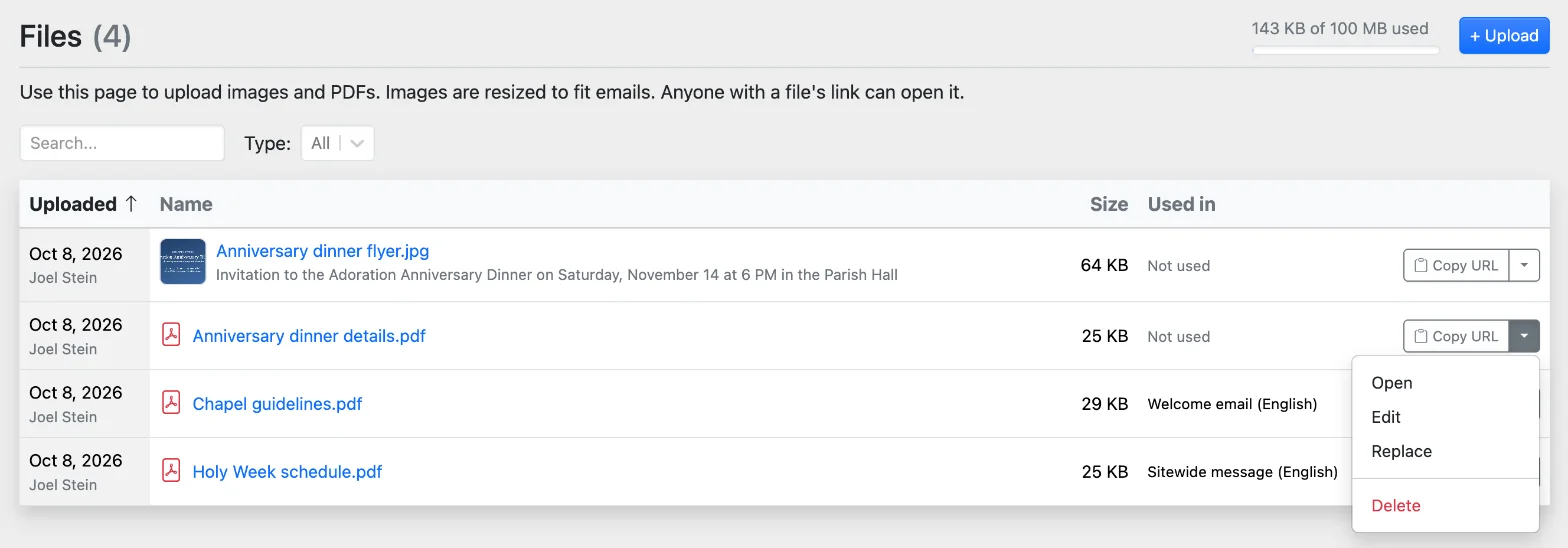
Uploading Files
Click Upload and choose one or more files. You can upload:
- Images (JPEG, PNG, GIF or WebP)
- PDFs
Each file can be up to 10 MB, and each parish has 100 MB of storage. Once anything is stored, the amount used (e.g. 2.4 MB of 100 MB used) shows beside the Upload button.
Images are resized to fit emails and optimized to load quickly.
Sharing a File's Link
Each file gets a short link, like https://PARISH.weadorehim.com/f/Ab3dEf.pdf. Anyone with the link can open the file, so don't upload anything private.
Click Copy URL to copy a file's link, or choose Open from the menu beside it to view the file.
Seeing Where a File Is Used
The Used in column lists where each file appears, such as:
- Welcome email (English)
- Guest welcome email (English)
- Sitewide message (English)
- Bulk message: Adoration Anniversary Dinner (Oct 7, 2026)
Editing a File
Choose Edit from a file's menu to change its Name, which adorers see on an attachment link. For an image, you can also set its Alternative text, a short description for adorers who use screen readers.
Replacing a PDF
To update a PDF, such as new chapel guidelines, choose Replace from its menu and upload the new version. The link stays the same, so emails already sent open the new version. Only PDFs can be replaced.
Deleting a File
Choose Delete from a file's menu. If the file is used anywhere, the confirmation tells you where.
Adding an Image to an Email
You can add an image to bulk messages, the welcome email and the guest welcome email. Click the image button in the email editor, then choose Upload from computer or pick an image under Or choose an uploaded image. Images you upload from the editor appear on the Admin » Files page too.
Every image needs alternative text, a short description for adorers who use screen readers, which also shows when an email app blocks images. The description box opens as soon as you add an image, and the email can't be saved or sent until each image has one. To change it later, click the image, then its Alt button.
Click the image to show it at 100%, 75%, 50% or 25% of the email's width.
To help keep your emails out of spam folders, an email can have only one image, and a bulk message with an image also needs a few sentences of text.
Attaching a PDF to an Email
Each of those emails can also have one PDF, which adorers open from the a link in the email. Click Upload a PDF to add a new one, or Choose an uploaded PDF to pick one from the Files page.
Linking to a File
The link button in the email editors and in the sitewide message lists your Uploaded files, so you can link text to an image or PDF without copying its address. Select the text, click the link button, choose the file under Uploaded files, and click Insert.